Settings and people
Organization-level controls now live in Settings. That includes the group name, people, inventory metadata, and billing.
Settings overview
Settings is split into clear tabs so daily operational pages can stay focused on inventory, reservations, repairs, scanner, and reports.
Preferred label format
In the Group tab, choose the printer and label stock your organization normally uses. The preference applies to labels printed from individual gear records and to bulk label PDFs for everyone in the active group.
- 1Open Settings and choose the Group tab.
- 2Under Preferred printer and label format, select Avery 43801, Avery 35523, or Dymo LabelWriter 1933084.
- 3Choose Save changes to apply the format to the active group.
- 4Open an item label or the bulk labels page and confirm the displayed stock before generating the PDF.
Only members with permission to edit Group settings can change the selection. If your printer or stock is not supported, use the request link beside the format selector. See the label format guide for dimensions, page layouts, and printing instructions.
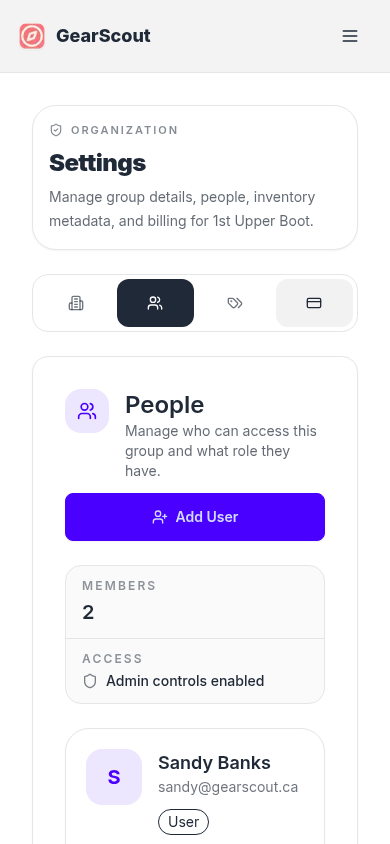
People
- 1Open Settings and switch to the People tab.
- 2Invite a new person or edit an existing user card.
- 3Choose the right role, then adjust the permission toggles if this person needs a more specific access pattern.
Your profile
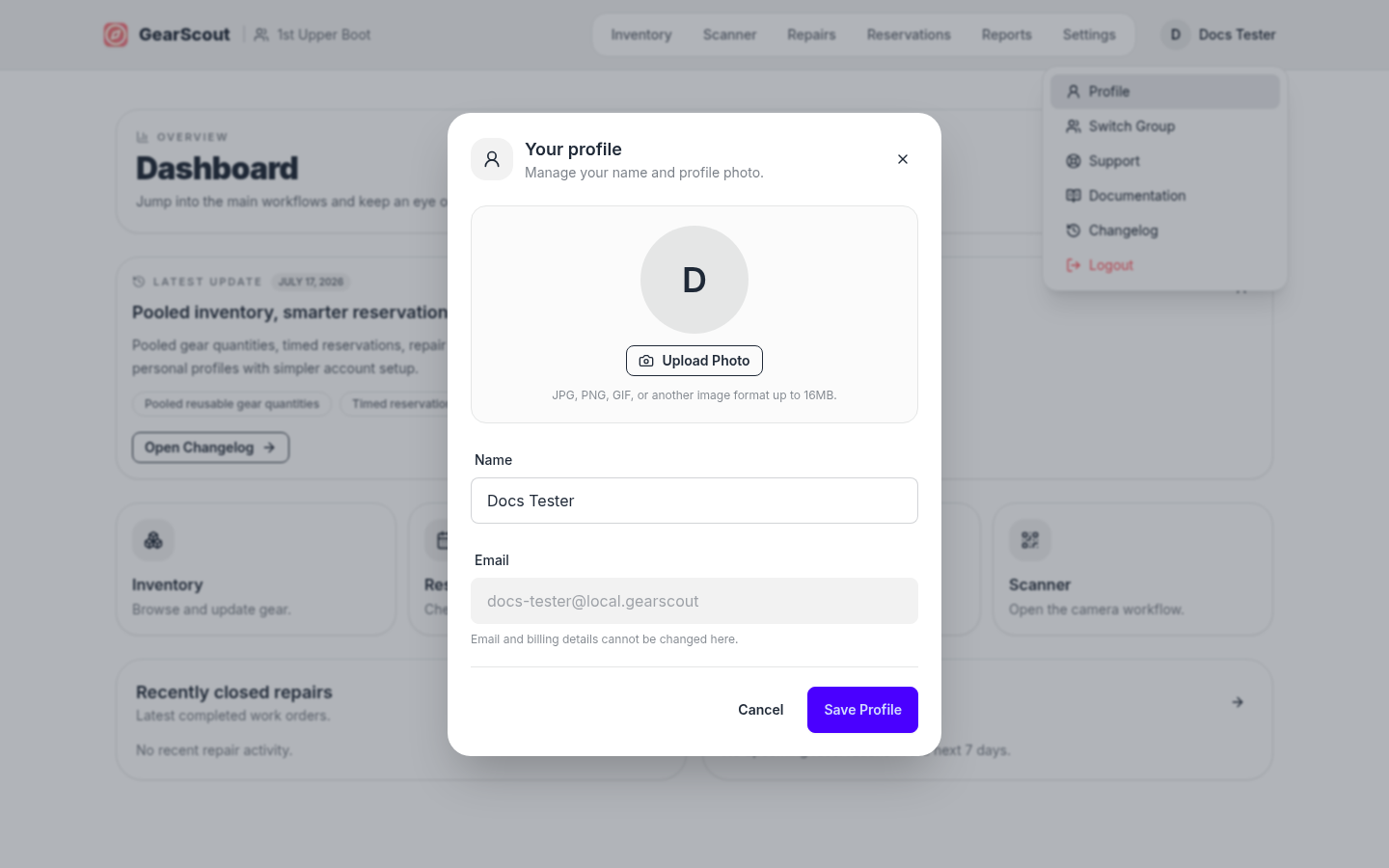
Open the account menu and choose Profile to update your display name or add, replace, and remove a profile photo. The new name and avatar appear in the account menu and People list. Your sign-in email and billing details cannot be changed from the profile dialog.
Personal profile
Each member can maintain their own display name and profile photo without changing their sign-in email.
New-user invitations
A newly invited person receives a four-hour Create Password link. After they set a password, the link cannot be reused. If the email already belongs to a GearScout account, the invitation sends them back to GearScout and their existing password continues to work across groups.
One-time-code sign-in remains available as an alternative. Password setup and reset links validate the token before accepting a new password and expire after use or after their time limit.
Permission editing
Roles still provide sane defaults, but each membership can now be tuned with a fixed permission matrix.

Access and roles
| Permission | Description | Account Owner | Admin | User | User Read Only |
|---|---|---|---|---|---|
View inventory Inventory | See inventory lists, item details, photos, and status tabs. | ✓ | ✓ | ✓ | ✓ |
Edit inventory Inventory | Create gear and update item details, photos, notes, and labels. | ✓ | ✓ | ✓ | ✗ |
Check gear in and out Inventory | Run manual check-in and check-out flows for inventory items. | ✓ | ✓ | ✓ | ✓ |
Manage inactive gear Inventory | Move items into inactive statuses like Lost, Decommissioned, or Archived. | ✓ | ✓ | ✗ | ✗ |
Manage inventory setup Inventory | Maintain shared categories, locations, and import-related setup. | ✓ | ✓ | ✗ | ✗ |
View reservations Reservations | See reservation calendars, lists, and conflict details. | ✓ | ✓ | ✓ | ✓ |
Manage reservations Reservations | Create, edit, and cancel reservations. | ✓ | ✓ | ✓ | ✗ |
Create repair tickets Repairs | Open repair tickets from the app and public gear pages. | ✓ | ✓ | ✓ | ✓ |
Comment on repairs Repairs | Add updates and notes to existing repair tickets. | ✓ | ✓ | ✓ | ✓ |
View repair queue Repairs | See the repair workspace and the inventory items currently out for repair. | ✓ | ✓ | ✗ | ✗ |
Manage all repairs Repairs | Update ticket details, assign work, and close repair tickets. | ✓ | ✓ | ✗ | ✗ |
View reports Reports | Open reporting screens and export operational summaries. | ✓ | ✓ | ✓ | ✓ |
Edit group settings Settings | Change group profile details and organization settings. | ✓ | ✓ | ✗ | ✗ |
Manage people and access Settings | Invite users, update roles, and change permission settings. | ✓ | ✓ | ✗ | ✗ |
View billing Billing | See subscription status and billing information. | ✓ | ✓ | ✗ | ✗ |
Manage billing Billing | Open the billing portal and make subscription changes. | ✓ | ✗ | ✗ | ✗ |
Inventory setup in Settings
Categories and locations are shared setup data, so they now live under Settings instead of inside the old inventory flow.
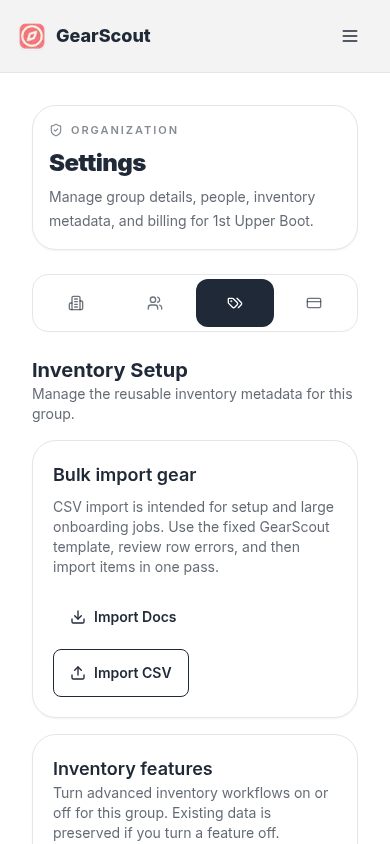
Use the Inventory tab in Settings to manage categories and locations, run CSV imports, and control the advanced inventory features for this group. Delete actions ask for confirmation so shared metadata is not removed accidentally.
Under Inventory features, you can turn Contained gear tracking and Verification checklists on or off for the whole group. When verification checklists are enabled, each item can define its own checklist; see Verification checklists in the inventory docs. Per-item public check-in/out and repair toggles are set on each gear record, not in Settings.
Billing
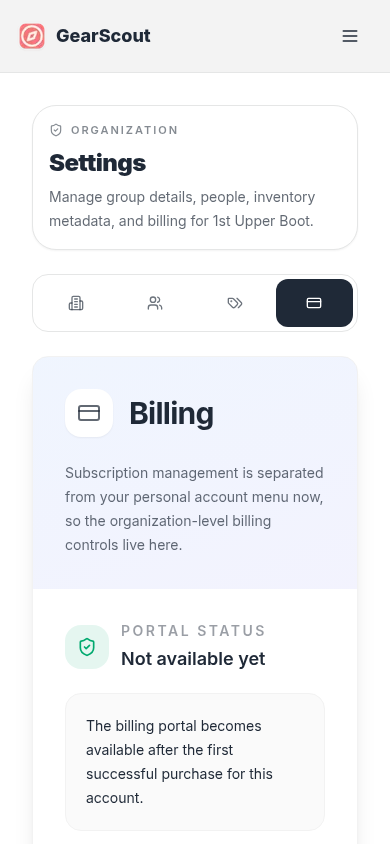
Organization-level subscription management now lives under Settings, separate from the personal account menu.