
Reservations
Reservations help your group plan gear ahead of time. Use them to avoid overlaps, keep event gear together, and launch bulk check-in or check-out from a reservation when the trip starts or ends.
List and calendar views
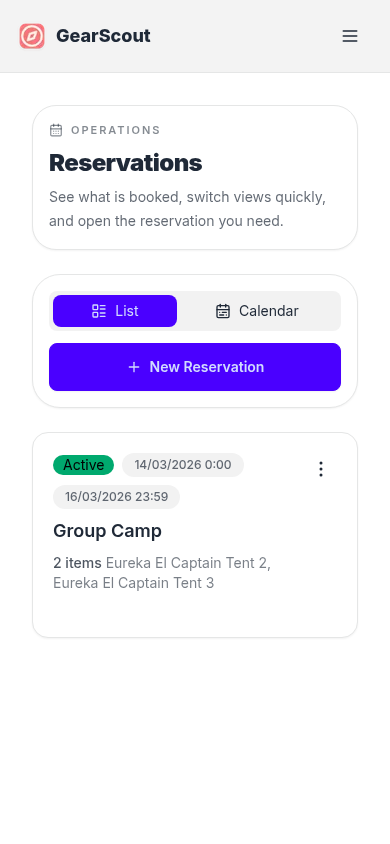
Switch between list and calendar views from the same page. The 3-dot menu remains the place for item-level actions.
Create a reservation
- 1Choose New reservation from the reservations page.
- 2Enter the event name and choose an all-day date range or turn on Specific times for an exact start and end.
- 3Select one or more gear items, set quantities for pooled gear, and add optional notes.
- 4Save the reservation once any conflicts or warnings are resolved.
All-day and timed reservations
All-day reservations cover every selected calendar day. Turn on Specific times when the gear can be handed from one event to another on the same day. Reservations whose end and start times touch exactly do not overlap.
The chosen schedule appears consistently in list and calendar views, on the dashboard and gear history, and on the printed checklist.
View or edit a reservation
Open a reservation from the 3-dot menu in list view or directly from the calendar. The detail page supports view and edit modes, duplication, and bulk check-in or check-out using the reservation gear set.
Reservation details
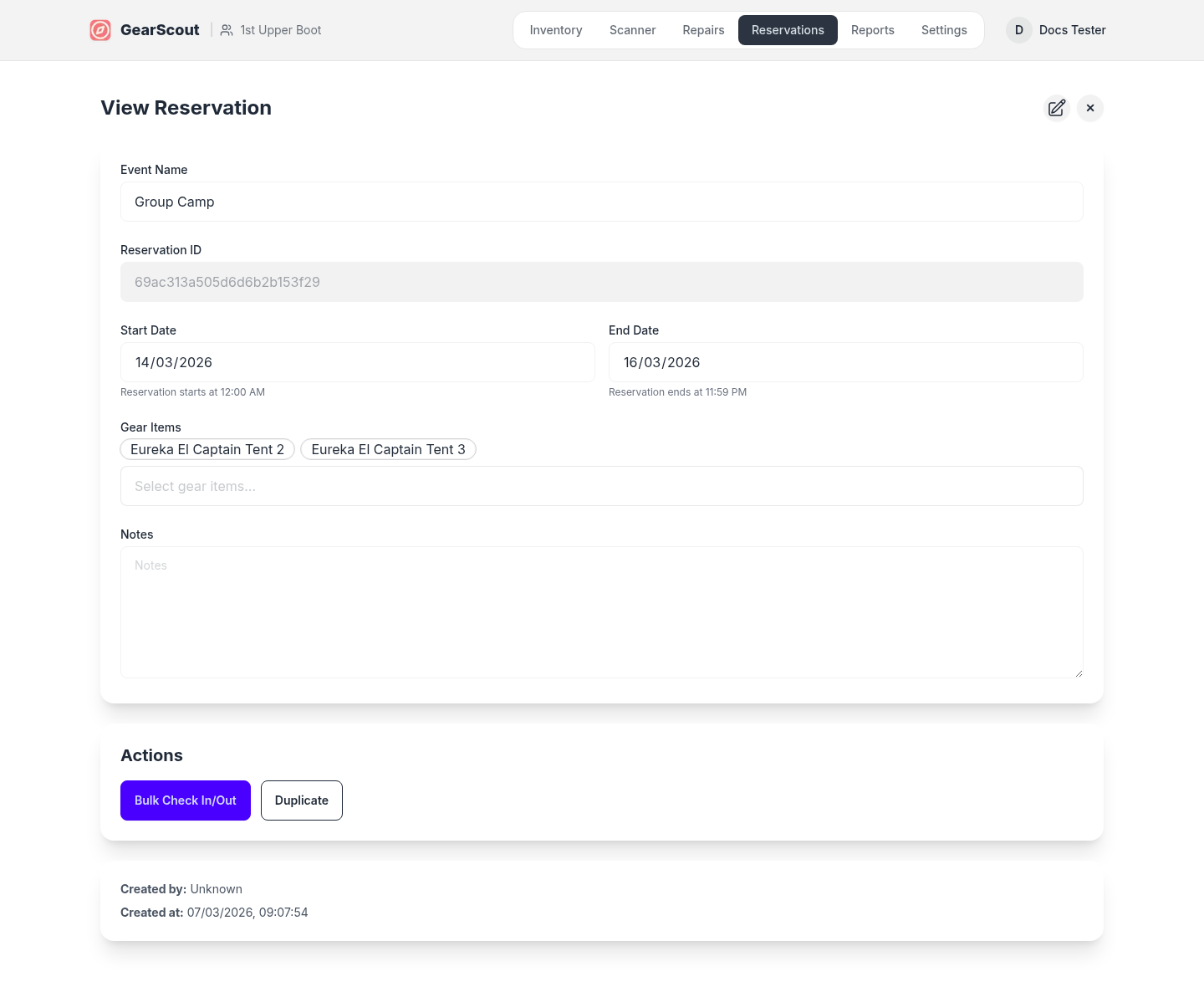
The detail view keeps the event details, selected gear, and action controls together so you can check and update a booking from one screen.
Plan exact times and pooled quantities
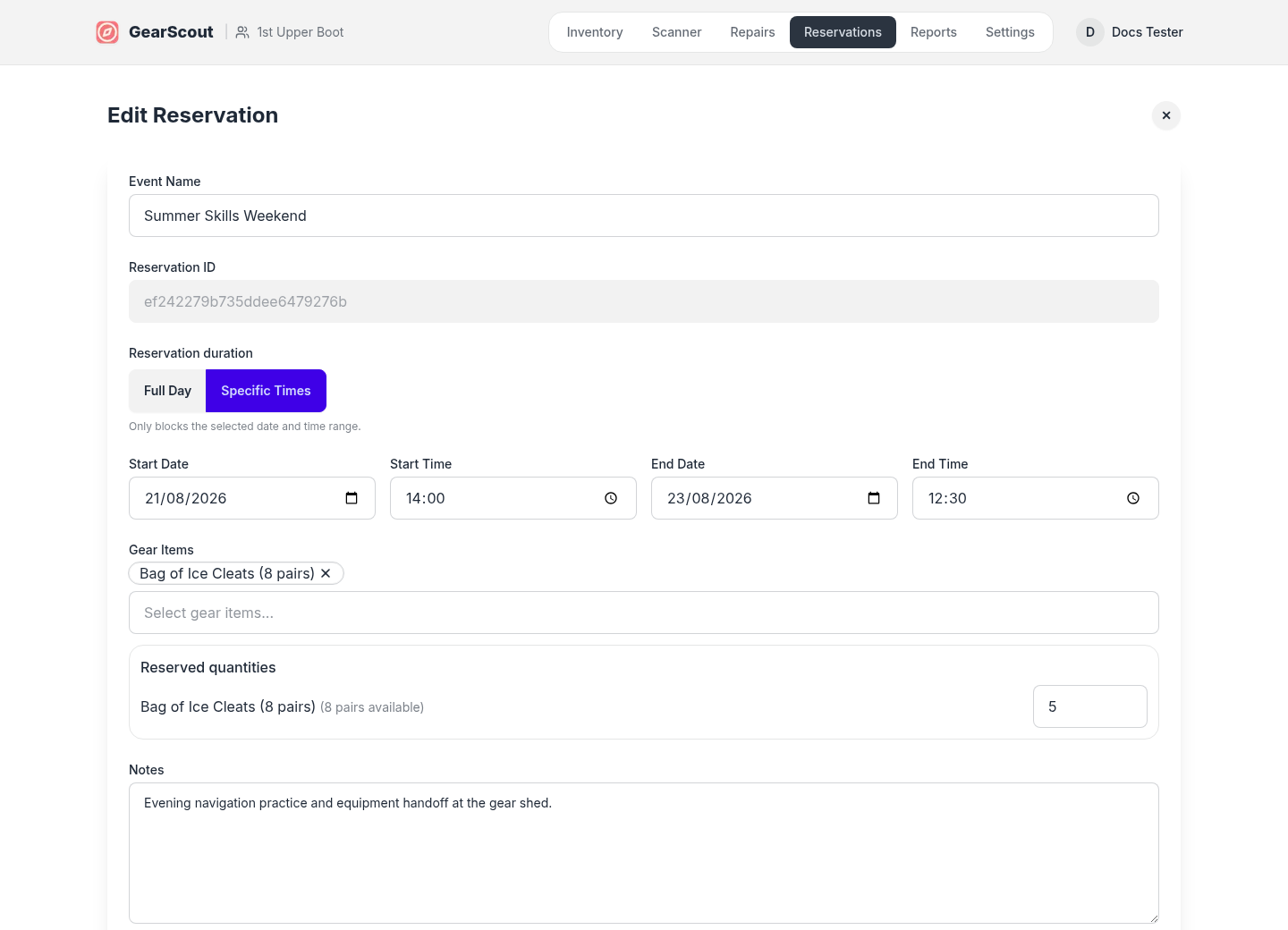
Timed reservations check capacity only during the selected window, and pooled gear records the number of units needed.
Conflicts and repair warnings
Individually tracked gear that overlaps another reservation blocks saving until the conflict is resolved. Pooled gear compares the requested quantity with the pool's peak commitment during that exact date and time window, so a later non-overlapping reservation does not reduce what is available for the event you are editing. Gear with open repair tickets triggers a warning so you can confirm whether the item should still be reserved.
Bulk check in or out from a reservation
From the reservation detail page, launch the bulk check-in or check-out flow to preload every gear item on the reservation. Pooled items automatically use the remaining reserved or checked-out quantity, which you can adjust before submitting. This is the fastest way to handle departures and returns for larger events.
The printable checklist includes the date or exact time range, groups gear by storage location, and prints reserved quantities for pooled items. During any checkout flow, GearScout also warns when selected gear—or gear inside a selected container—is reserved within the next 24 hours. The warning is informational so an authorized user can still continue when appropriate.